WooCommerce and WordPress: how do they work together?
WordPress manages website content. WooCommerce adds a product catalogue, shopping cart, checkout and sales dashboard. It runs within your WordPress installation, on your chosen hosting and domain. It is not a marketplace where your products appear alongside other sellers’ listings.
The basic plugin is free and open-source. It can be expanded with add-ons and custom solutions. However, this doesn't mean running a store is cost-free: hosting and a domain are required, while design, maintenance, selected licences, and external services all have separate costs.
In practice, a store consists of several interacting components. WordPress manages content and users, WooCommerce manages sales, the theme manages appearance, and extensions manage additional functionality. The payment provider processes the transaction, the carrier delivers the package, and the integration transfers established information between them. Simply installing WooCommerce does not automatically enable these services.
In this guide, I show the actual dashboard from a separate demo store. The screenshots contain fictitious products and orders. The appearance of the screens may vary depending on the version, permissions, and add-ons. You can view the demo store and dashboard without logging in.
What does basic WooCommerce include and what requires add-ons?
It's worth separating the functions of WooCommerce itself from the capabilities of the entire, configured store. This way, you know what can be configured immediately and what requires further selection and implementation.
The foundation includes a catalogue, product variants, inventory, shopping cart, orders, coupons, basic shipping rules, tax settings, and sales reports. Connections to online payments, carriers, and other programs are typically added through extensions or external services.
Some features have a basic built-in version and a more advanced extension. A percentage coupon is built in, for example, while a loyalty points scheme or complex promotion rules need an additional solution.
- Basic: products, categories, prices, orders, coupons and basic reports.
- Configuration: sales countries, currency, taxes, shipping, customer accounts and messages.
- Extensions: online payment gateways, shipping labels, subscriptions, bookings and selected B2B features.
- External services: hosting, payment processing, delivery, accounting or inventory management.
Product types: physical, variable and digital
A simple product is a single item with no selectable variations. A variable product offers options such as size and colour. Each variation can have its own SKU, price and availability.
A grouped product presents related products together. It is different from a configurable bundle with its own discount rules. An external or affiliate product directs the customer to another site to buy.
The "virtual" designation eliminates the need to ship the product. "Downloadable" allows you to assign a file and access rules. These settings can coexist: an e-book is typically virtual and downloadable, while a physical item may have additional instructions as a file.
A course with lessons, a reservation, or a subscription are more complex models. They require appropriate add-ons, not just selecting the "virtual" option.
Product list: prices and availability in one place
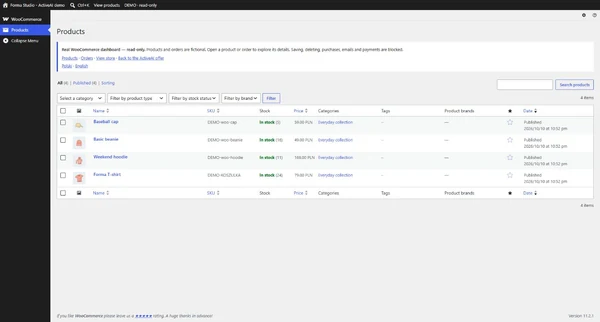
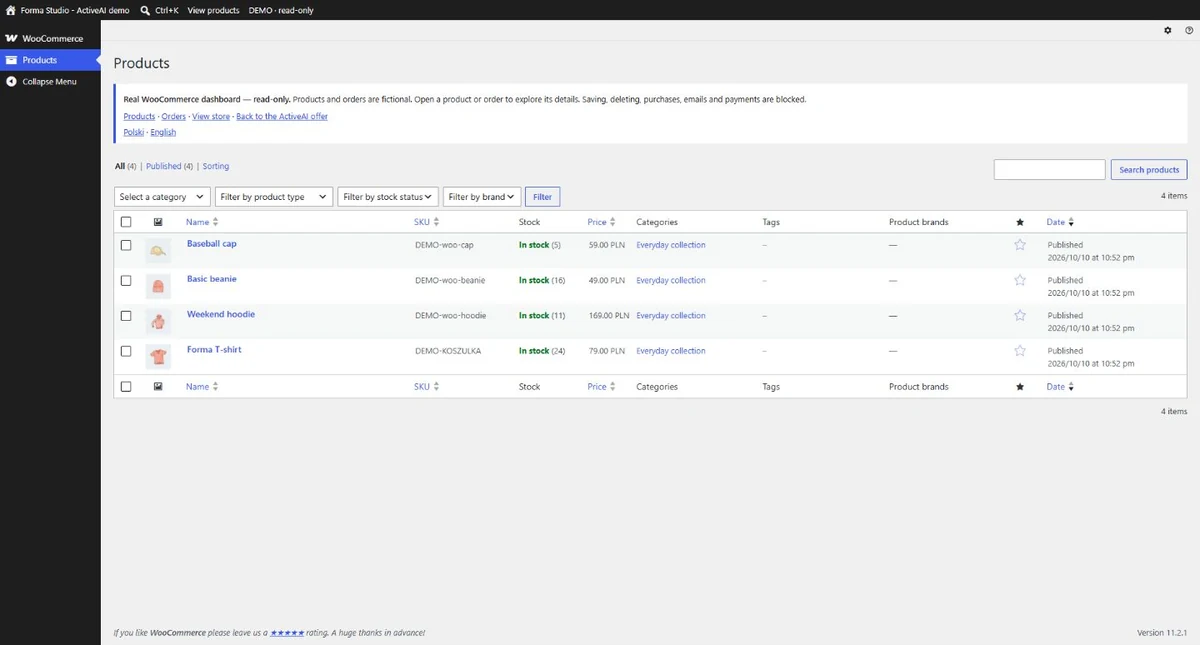
The product list displays the product name, thumbnail, SKU, stock status, price, and category. You can search for a product, limit the list with filters, or edit it. This is the place you return to when updating the catalogue daily.
In the example, there are four products. The T-shirt has size variants, and the remaining items are single products. In a larger store, organising product names, categories, and codes helps you find the right item. If stock or prices come from the inventory system, you need to determine in advance where you're changing them to prevent synchronisation from overwriting manual edits.
Categories, attributes and stock: how do you organise your catalogue?
Categories structure the catalogue, such as "Clothing" and "T-Shirts." Tags allow you to combine products with additional labels, while attributes describe characteristics such as material, colour, or size. An attribute doesn't have to indicate a variant selection—it can simply be information about the product.
Filters help customers narrow down their catalogue based on structured data. Their scope and appearance depend on the blocks, theme, and extensions used. If one product is coloured "navy" and another has the same feature written differently, filtering will be less clear.
WooCommerce can track stock for products or variations, notify you of low stock and control purchases when items are unavailable. Backorders need to be configured carefully and explained to customers. WooCommerce is not a complete warehouse system covering every document and process.
For larger catalogues, built-in product import and export via CSV is useful. The file requires a consistent structure, identifiers, and correct image and variant assignments. Product import does not automatically guarantee full migration of customers, orders, and settings.
Product Editing: Description, Image, and Variants
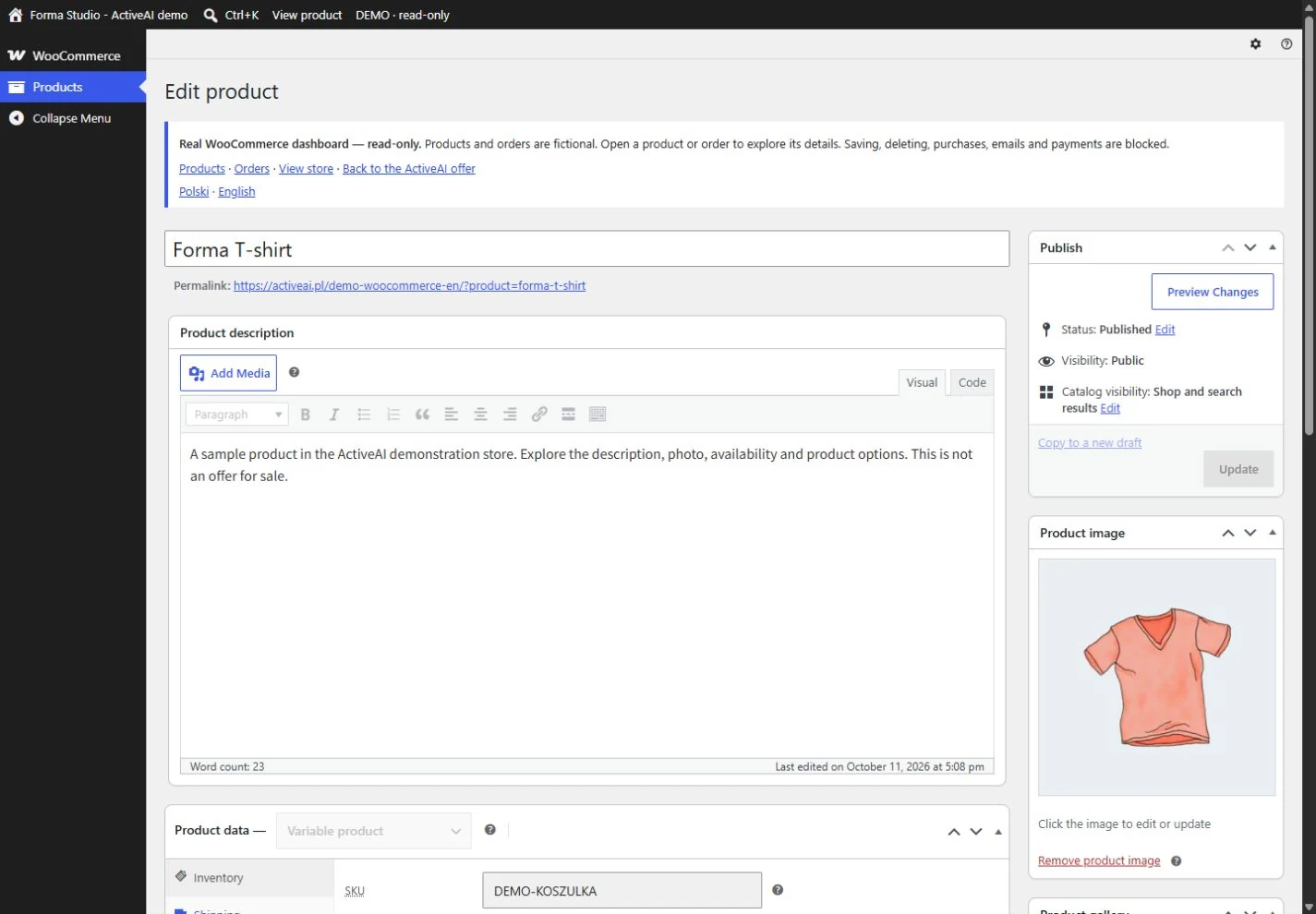
Once you open a product, you can change its name, description, and image. The product data panel contains inventory settings and other fields depending on its type. For a product with variants, you can specify sizes, for example, and set prices and availability for individual variants.
At handover, I show you which fields you can manage and how to check changes in the customer view. Editing product content and rebuilding the store layout are separate tasks.
What does the customer see on a product page?
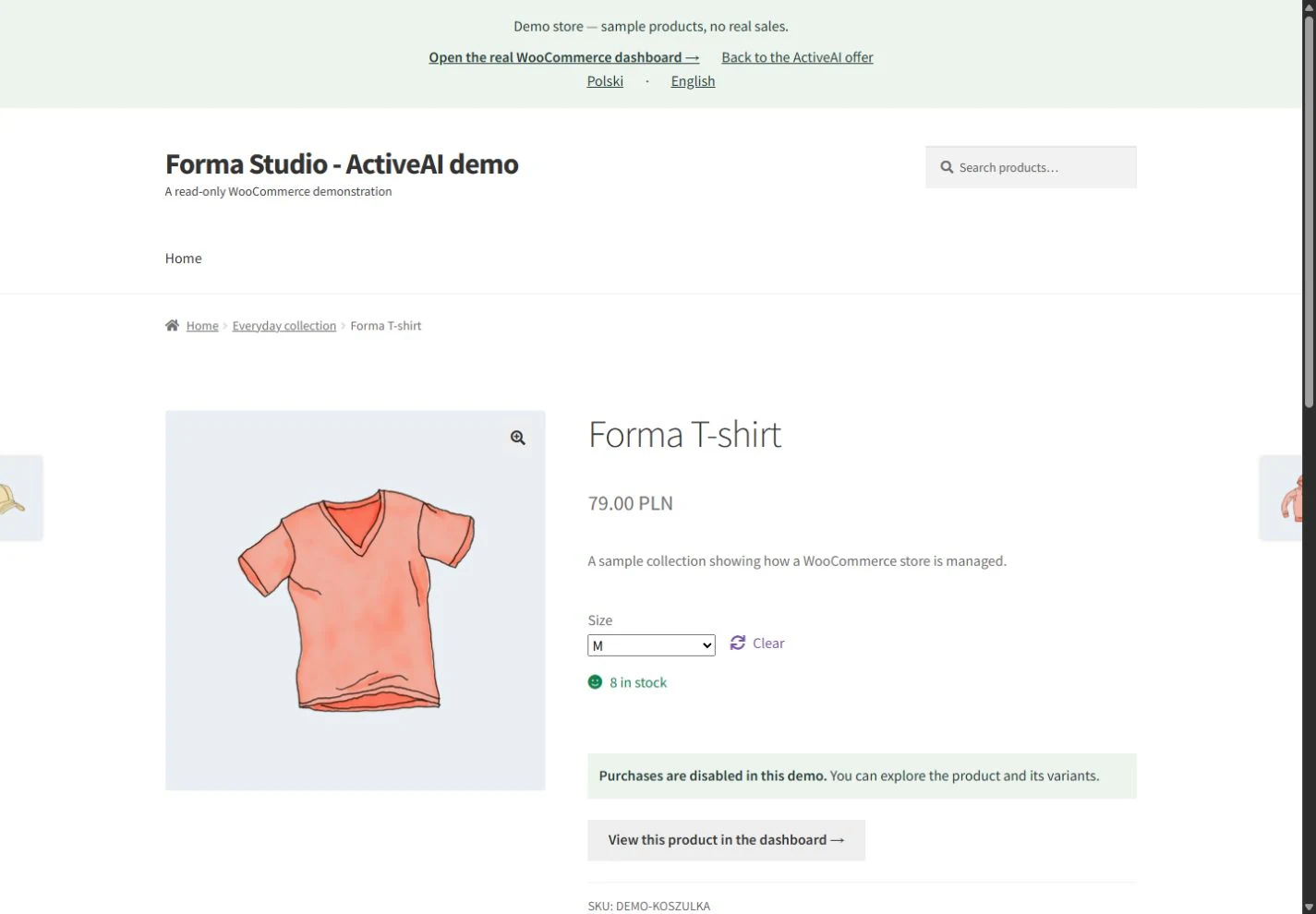
Customers can see a photo, name, price, and description. They can also select a size for the T-shirt. After selecting a variant, they can check availability, set the quantity, and add the product to their cart.
This is an example of the Storefront theme's appearance; it's not mandatory for every WooCommerce store. I tailor the layout to the offer and materials. It's important that the information needed before purchasing is legible even on a phone.
Shopping cart and checkout
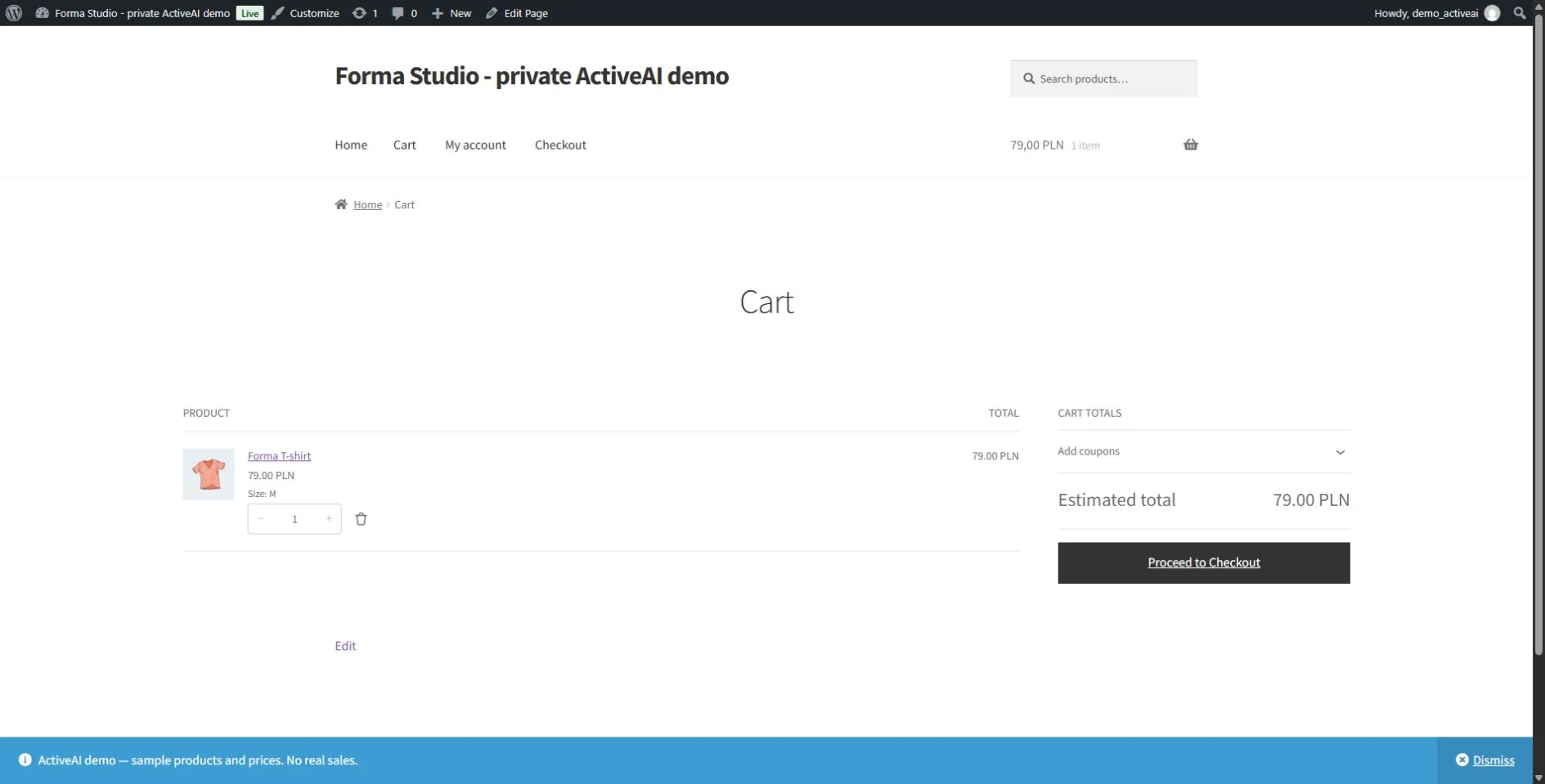
In the shopping cart, the shopper reviews the selected products, variants, quantities, and summary. The screenshot shows a single T-shirt in size M, added during the demo setup. The public demo is read-only—it doesn't allow adding products to the cart or placing orders.
The rest of the order form depends on your store configuration, shipping, and payment options. This demo doesn't accept actual payments. When implementing a store, I configure the agreed-upon connections and test them in a suitable test mode.
Payments: BLIK, cards, transfers and mobile wallets
Customers should be able to pay using a method they're familiar with. WooCommerce can be connected to a payment provider via a suitable plugin. Depending on the provider and the services you've activated, you can enable BLIK, instant transfers, cards, Apple Pay, and Google Pay. An example is the official Przelewy24 integration; other solutions include Stripe and PayPal.
Payment methods are not all enabled automatically. You need a merchant account, configuration and checks of supported countries, currencies and provider terms. Plugin costs and transaction fees are separate. I also check compatibility with checkout and how payment confirmation reaches the store.
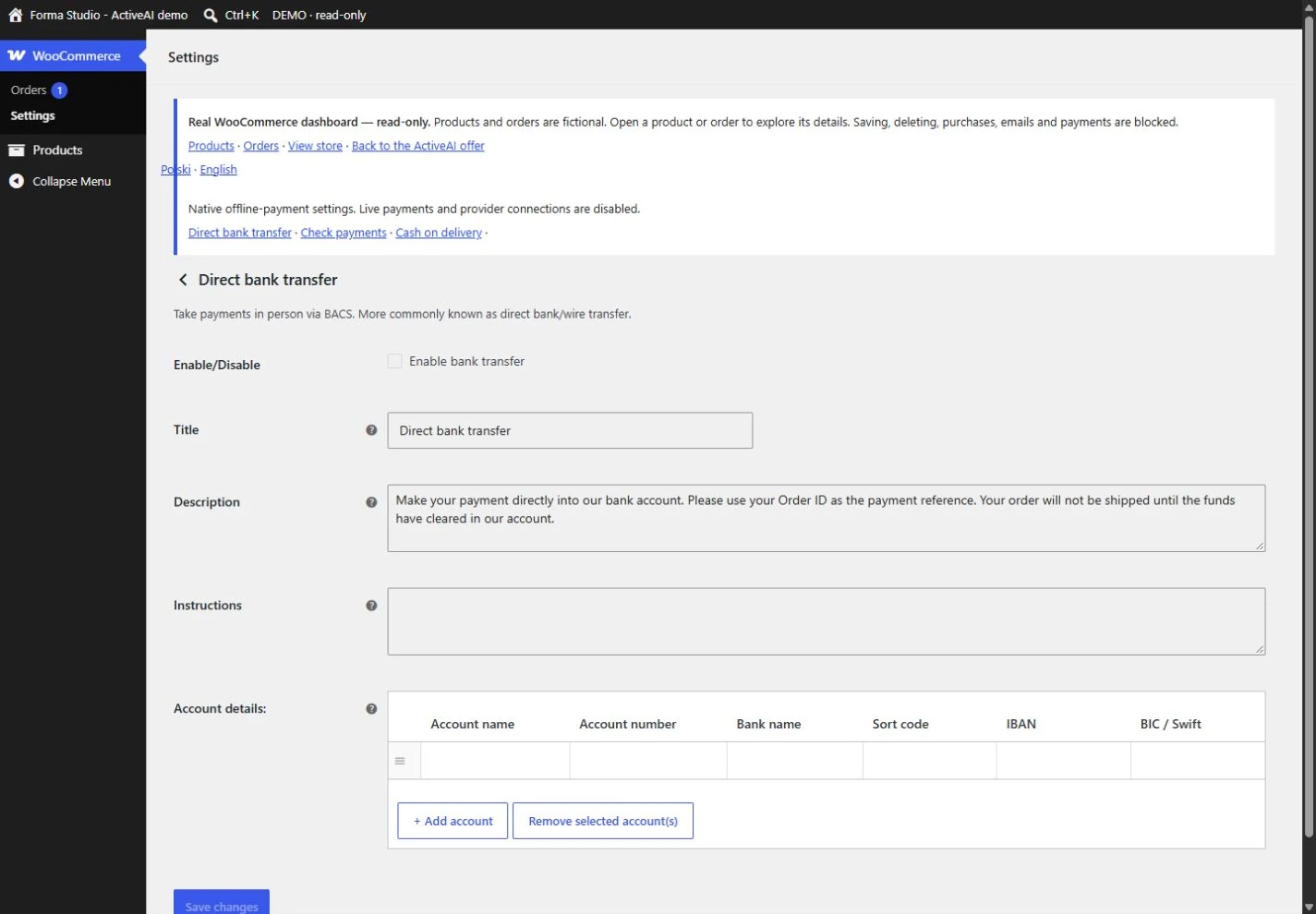
You can also offer direct bank transfer or cash on delivery. These use a different payment confirmation process from an online gateway. Subscriptions require an extension and payment provider that support recurring payments.
I configure the agreed methods and test checkout, the return from the payment provider and order status updates. Payments are disabled in the public demo: it shows the interface, not a live transaction.
Shipping: from local collection to automatic labels
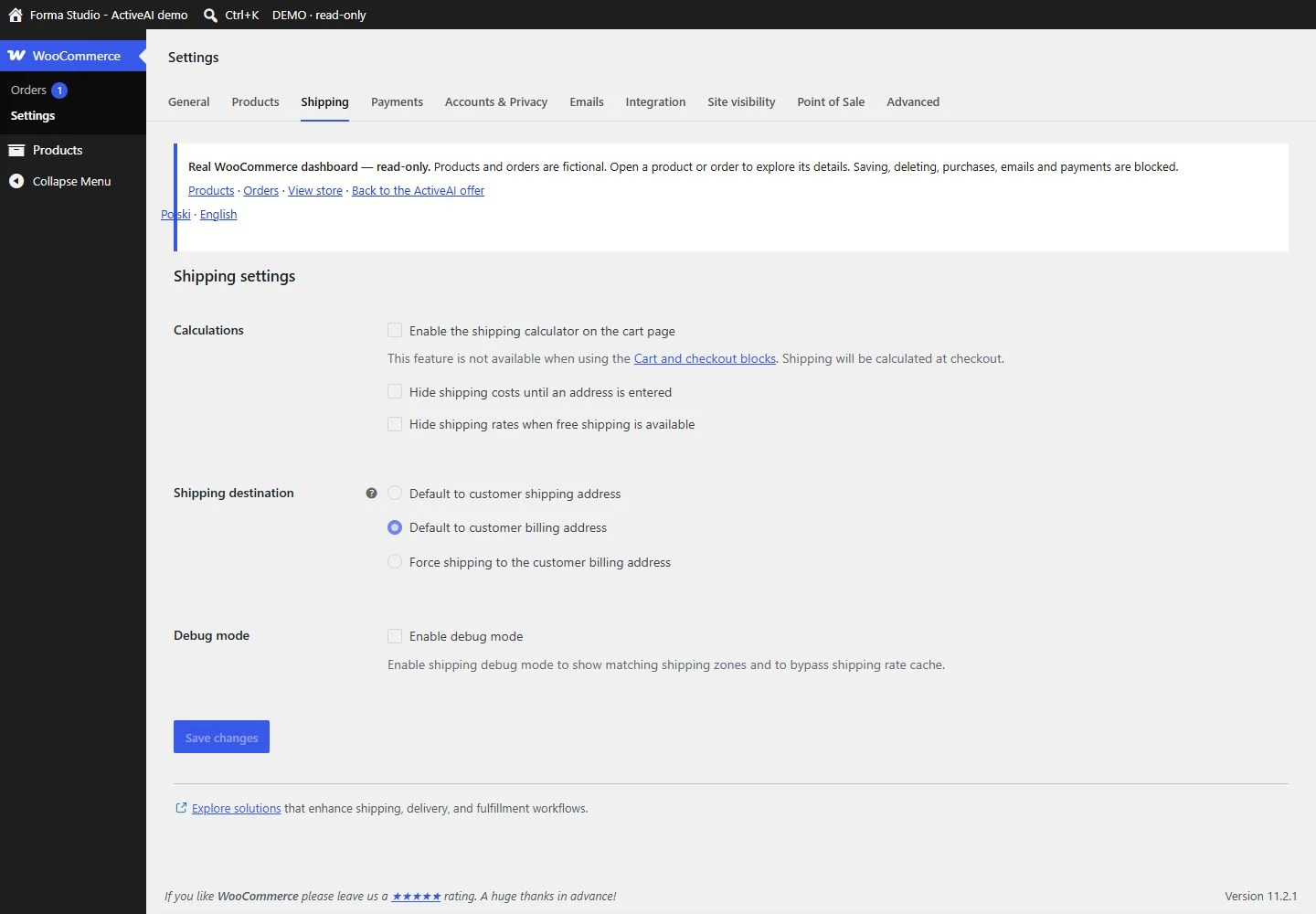
A store can offer local collection, courier delivery and collection points. Built-in WooCommerce settings provide shipping zones, flat rates, free shipping and local collection. Selecting a point on a map, generating labels and sending tracking numbers need a suitable extension or shipping-system integration.
Before setting up, I determine where you're shipping, what influences the shipping cost, and which products require different policies. A lightweight T-shirt and a large item may require different shipping methods. The free shipping threshold should also be clearly defined.
A well-designed connection reduces the need to retype addresses and tracking numbers. However, its scope depends on the carrier, the integration used, and your contract. Not every feature is included with basic WooCommerce.
A shipping zone defines an area and the methods available there. Customers see methods from the first zone that matches their address, so narrower zones should come before broader ones. Shipping classes group products with similar delivery requirements, such as bulky items; they do not book a courier themselves.
Orders: what needs processing?
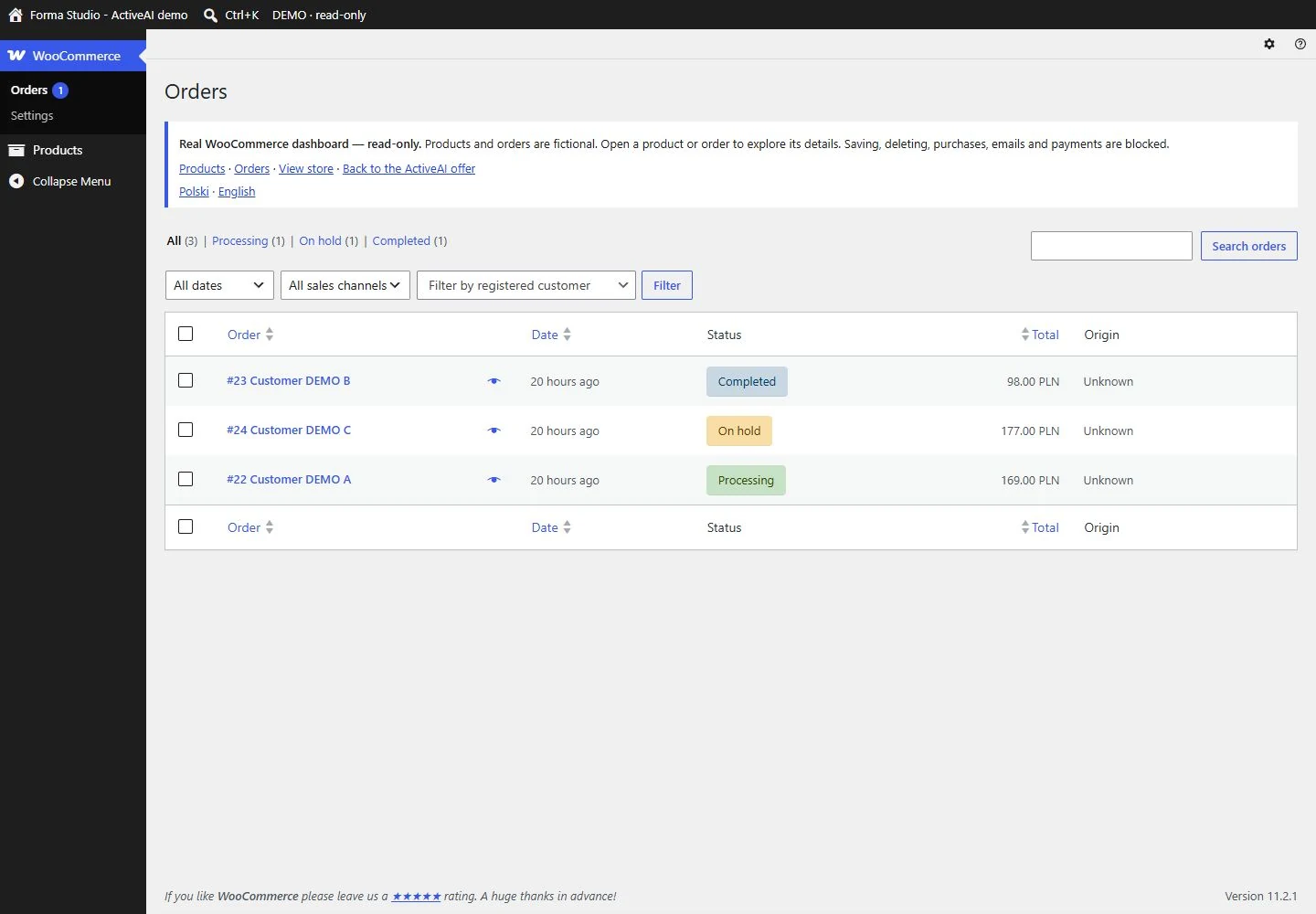
The order list shows, among other things, the order number, date, customer, status, and value. The demo shows orders in progress, completed, and pending payment. After opening a specific order, you can review its contents and details.
In a live store, a status change can trigger messages or integrations. Workflows must be adapted to the payment, shipping, and inventory systems. Here, all data is fictitious, and email sending is disabled.
Order statuses show the processing stage. “Pending payment” means payment has not been received. “On hold” may mean the store is waiting for payment confirmation. “Processing” usually means a paid order needs fulfilment, and “Completed” means fulfilment is finished. Other statuses cover cancellation, failed payment and refunds. The workflow depends on the product type and payment gateway.
Order details show items, amounts, addresses and notes. You can record decisions and perform supported actions. Refunds may be partial or full; automatic refunds require support from the payment provider. Recording a manual refund does not transfer money to the customer. Likewise, marking an order as completed does not dispatch a parcel unless an integration does that.
Customer account and post-purchase messages
You can allow guest checkout or configure registration. Customer accounts show order history, addresses and available downloads. Features such as wish lists or wholesale terms depend on extensions.
WooCommerce has messages related to order and account management. These messages are triggered by specific events. You can set the sender and customise the available templates. In practice, you also need to ensure your store's email is working and verify message delivery.
Purchase confirmations, newsletters, and reminders about unfinished orders all serve different purposes. Simply launching transactional messages doesn't create a complete marketing system. More complex scenarios require separate communication tools and policies.
Promotions, coupons and upsells
WooCommerce supports scheduled sale prices and coupons that apply a percentage or fixed discount to a cart or selected products. Restrictions can include expiry dates, order amounts, eligible products and usage limits.
For example, a welcome code may apply to a specified cart value, excluding selected items. A product coupon doesn't necessarily mean free shipping—free shipping must be linked to its terms separately.
Products can display related alternatives or complementary items. Loyalty schemes, automatic quantity discounts and complex bundles need extra configuration or extensions. Before launching a promotion, test how it combines with other discounts and shipping rules.
Prices, taxes and sales documents
In the settings, you choose the store's currency and how prices are entered and displayed. Tax configuration includes rates, tax classes, and how to determine the address on which the calculation is based. Prices may be displayed differently in the catalogue and during the order process, so the entire purchase must be reviewed as a coherent whole.
These are technical settings: WooCommerce applies the rules configured by the seller. It does not decide which tax treatment is legally correct. Agree the required settings for your products and markets with your accountant.
An order confirmation is not automatically an invoice from your accounting system. A plugin or external application can issue and send documents, with agreed rules for timing, data transfer and corrections. Multi-currency sales also need suitable configuration, exchange rates and compatible payment methods.
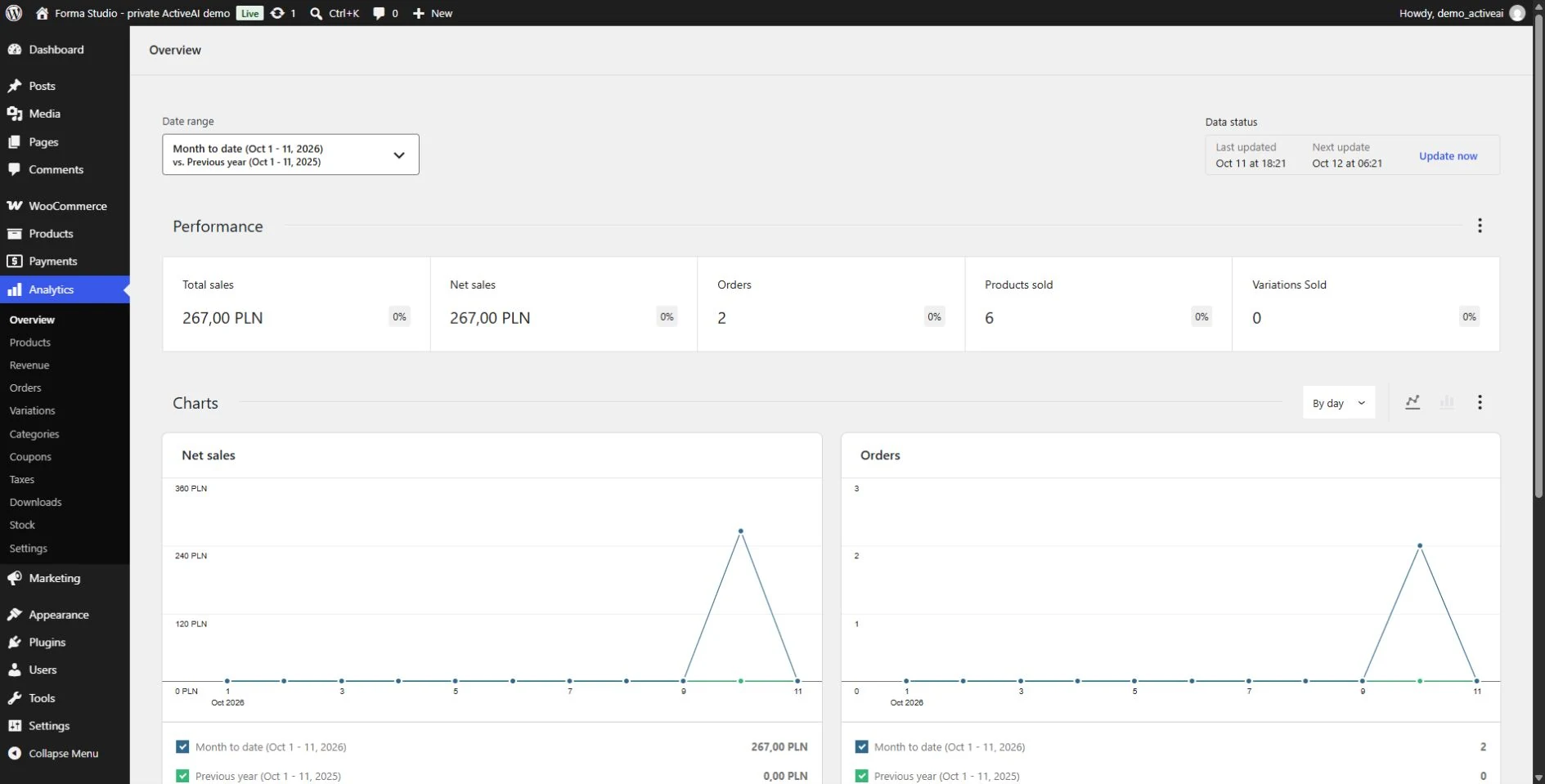
Sales reports: what can you check in the dashboard?
WooCommerce reports allow you to analyse orders, product sales, coupons, returns, and other store data for a selected period. They help you see which products are selling well and how the value of purchases is changing. Available reports can be filtered, compared by period, and data can be exported.
The result depends on the definition of the metric and the statuses considered. Sales value is not the same as profit: to assess profitability, you also need merchandise costs, advertising, service, and other expenses. Returns and discounts can change the balance.
The sales dashboard doesn't answer all questions about visitor behaviour on its own. A tool like GA4 can be implemented to analyse traffic sources and the purchase path. This is a separate measurement that requires configuration, consent management, and event verification. The absence of an event in traffic analytics doesn't necessarily mean there's no order in the store database.
Plugins: What features can you add to your store?
A plugin is an extension that adds a specific function. WooCommerce itself is a WordPress plugin, and additional add-ons can expand sales and support. Some are free, others require purchase or licence renewal.
I select plugins based on what the store is actually intended to do. I verify their maintenance, compatibility, costs, and interoperability with other components. More plugins don't necessarily mean a better store: overlapping functionality complicates maintenance and testing.
Example areas of expansion include:
- Search and filters – expansion of the basic catalogue presentation with additional rules and more convenient search.
- Bundles and personalisation: component selection, custom text and extra product options.
- Subscriptions, bookings and access: sales models requiring suitable extensions and configuration.
- Marketing: newsletters, loyalty schemes and agreed automation beyond basic coupons.
- Language versions and currencies – expansion for selected markets with prepared translations.
- B2B sales: for example, account approval and agreed wholesale price lists.
Inventory, invoicing and marketplace integrations
WooCommerce can be part of a larger sales system. Connecting to a warehouse, invoicing program, or a tool like Base allows you to plan the flow of orders, prices, and stock. The scope depends on the available connector or API, i.e., the data exchange interface between systems.
A sample process looks like this: the customer pays for the purchase, the order is sent to the sales system, and after the package is prepared, the tracking number is returned to the store. Availability synchronisation can be established separately, so that products sold across multiple channels share a common stock source.
Before implementation, you need to determine which system manages pricing and inventory, how often the data updates, and what happens in the event of an error. This will ensure that manual changes in the store aren't unexpectedly overwritten by synchronisation.
I don't promise to connect every program with a single click. I first verify the capabilities of the tools I use. If your sales require multiple systems, see my system integration service —I can help you map out the necessary data flow.
WooCommerce provides a REST API for accessing and modifying data by authorised systems. Webhooks can notify another tool of an event, such as an order change. These are mechanisms for building integrations, not a ready-made connection to any program. The recipient must understand the data, handle duplication and errors, and have the appropriate permissions.
Design, WordPress and content that supports shopping
Themes and templates define the appearance of pages, and product data comes from the WooCommerce catalogue. Therefore, two stores on the same platform can look completely different. The product page, menu, cart, and order page should all work together to guide the customer through the purchase process.
WordPress allows you to connect your store with guides, a brand page, instructions, and FAQs. With a well-planned catalogue, customers can navigate from a guide to a category, and then to a specific product. Changing images and descriptions in the dashboard is a different matter than modifying the template.
WooCommerce does not guarantee high Google rankings. A store still needs useful content, clear URLs, suitable indexing rules, internal links and a smooth mobile experience. SEO plugins help manage settings; they do not replace product descriptions or a well-organised catalogue.
Maintenance, permissions and security
A store owner needs a maintenance plan for WordPress, WooCommerce, themes, and add-ons. Updating one element can impact others, so before making changes, it's important to have an up-to-date copy of the files and database and test them on a test copy. After implementation, purchases, payments, delivery, and messaging are monitored.
A backup is useful only if it can be restored. The store constantly receives new orders, so reverting the entire database to an older state could result in the loss of some current data. The restore method should be tailored to the type of failure.
Access should be appropriate for specific tasks. The administrator manages the website, while the store manager role allows for many sales activities without full administrator privileges. Instead of a shared account, it's best to assign separate accounts with the appropriate level of access.
Hosting, HTTPS, current plugins and login protection also need attention. No single plugin replaces the maintenance process. See the scope of my website and store maintenance service.
Advantages and limitations: when is WooCommerce a good choice?
WooCommerce's strength lies in its extensibility and its seamless integration with WordPress. You can choose the look, hosting, and integration method, and develop your store in stages. Daily catalogue and order management require no coding.
This flexibility also means responsibility for the entire toolkit. Licensing, updates, hosting quality, and add-on compatibility all require attention. If you're looking for a service where the provider handles most of the maintenance for you in a single subscription, it's worth comparing the WooCommerce model with a subscription platform.
There's no single number of products that determines whether a platform will work. Variants, the number of concurrent clients, search, integrations, and infrastructure performance all matter. At larger scales, measurements and load testing are essential, not promises of unlimited performance out of the box.
To launch, you'll need a catalogue and materials, payment and shipping policies, a design tailored to your offering, and a tested checkout process. A basic plugin is the starting point. Development, maintenance, and extensions are described separately in the How much does a WooCommerce store cost? guide.
Explore the demo as a customer and a store manager
It's easiest to evaluate a panel when you can see it for yourself. Open the demo store, select a T-shirt, and see how the variants are presented. Then, navigate to the panel: view the product list, edit screen, and sample orders.
The demo works without logging in and is read-only. You can browse the screens, but you can't save changes, delete products, or place an order. The data is fictitious. This is an example of the basic experience—the payments, additional plugins, and integrations discussed are not part of the active demo features.
Consider what information you need to see in your daily work. When discussing your project, we can relate these screens to your products and shipping methods.
What do you handle yourself and what is worth outsourcing?
Daily work may include adding products, changing descriptions and images, and processing orders. The scope depends on your permissions and established workflow. Updates, backups, and integration changes require a separate maintenance plan.
If you're looking to start your own store, check out my WooCommerce development service. I explain budget elements in my guide on how much a WooCommerce online store costs. You can also fill out a store brief —I'll help you determine the scope you need.
Questions and Answers
Do I need to code to use WooCommerce?
Daily product editing and order management are handled in the dashboard. Custom features or changes beyond the available settings may require programming.
Will my store look the same?
It doesn't have to. The screenshots show a sample store using the Storefront theme. I determine the appearance and features of the target store individually.
Is WooCommerce free?
The basic plugin is free. Hosting, domain, store development, selected add-ons, and maintenance are billed separately. Payment providers have their own terms and fees.
Is every feature described in the guide available immediately?
No. The catalogue, orders, and basic settings are part of WooCommerce. Payment gateways, integrations, and more complex sales models require appropriate add-ons or services.
Is WooCommerce an accounting and warehouse system?
It handles sales and basic product inventory, but it doesn't automatically replace a full accounting or inventory system. Such tools can be combined within a defined scope.
Can I change products or purchase them in the demo?
No. The public demo allows you to view real store and dashboard screens in a read-only format. It contains fictitious data and does not accept orders or payments.
Sources and further reading
- WooCommerce - Official Plugin
- WooCommerce - Choosing a Payment Provider
- Przelewy24 - Official WooCommerce Integration
- WooCommerce Extension Documentation
- Base - WooCommerce Integration
- WooCommerce – Product Types and Settings
- WooCommerce - Categories, Tags and Attributes
- WooCommerce - CSV Product Import and Export
- WooCommerce – Order Statuses
- WooCommerce - Shipping Zones
- WooCommerce - Coupons
- WooCommerce – Tax Settings
- WooCommerce - Customer Accounts
- WooCommerce - Emails
- WooCommerce - Sales Reports
- WooCommerce - Updating Your Store
- WooCommerce - Roles and Permissions
- WooCommerce - Webhooks
From knowledge to action
See how I can help with your project.